Stuck, or found something wrong in Odyssey for Today? This is how to get help, and how to reach us.
Something wrong with a card, module or course
Each card's page, each module's page, and each course on the Курсы page has Сообщить о проблеме. Open it on the one that is wrong and tell us:
- what you did, such as the answer you typed;
- what you thought would happen, and what happened instead;
- the device and browser you were using, if the app itself misbehaved.
The report reaches us with the card, module or course it is about, and your username.
Adding Odyssey for Today to your home screen on iPhone
Once added, it opens from its own icon like any other app.
- Open Odyssey for Today in Safari.
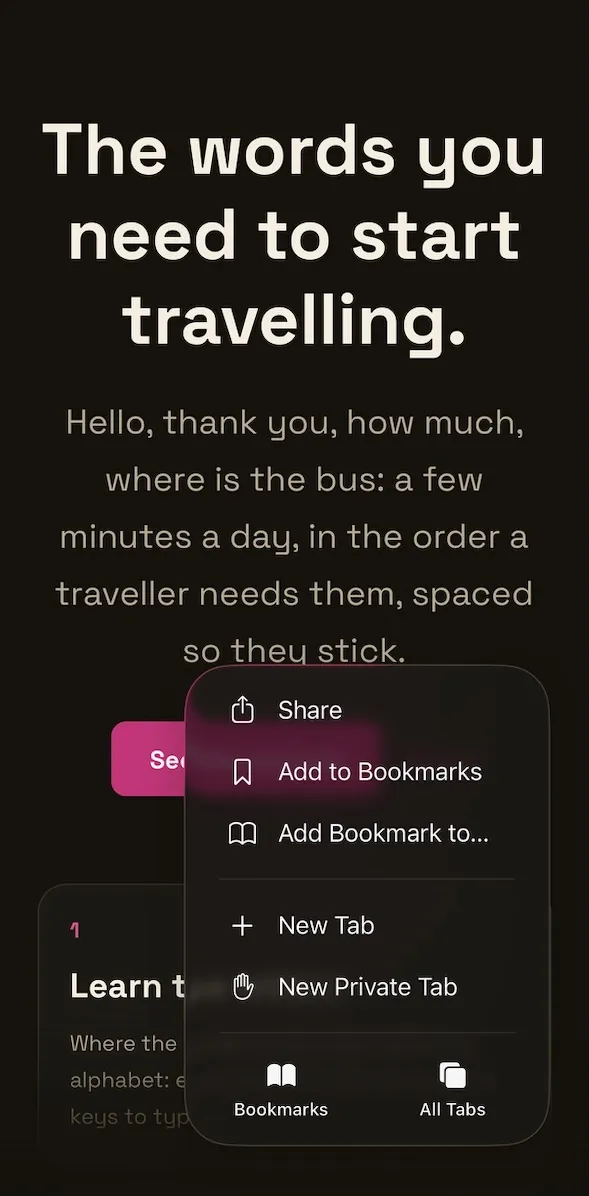
- Tap the page menu button, then Share. If your tabs sit at the top or bottom of the screen, tap the Share button instead.
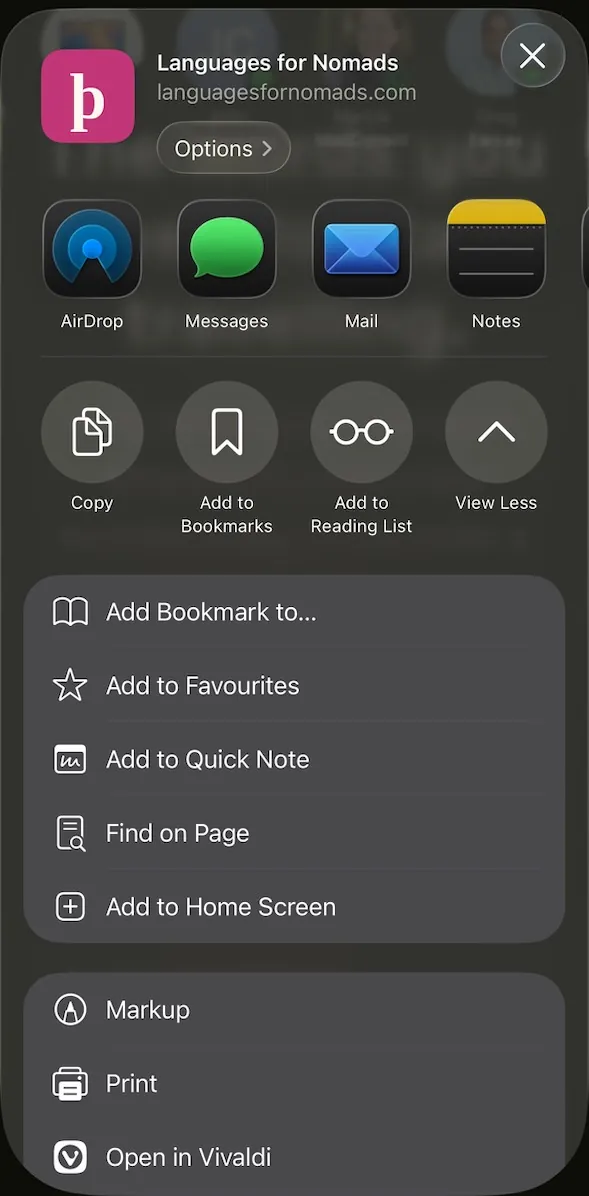
- Scroll down and tap Add to Home Screen. If it is not there, tap Edit Actions at the foot of the list, then Add to Home Screen.
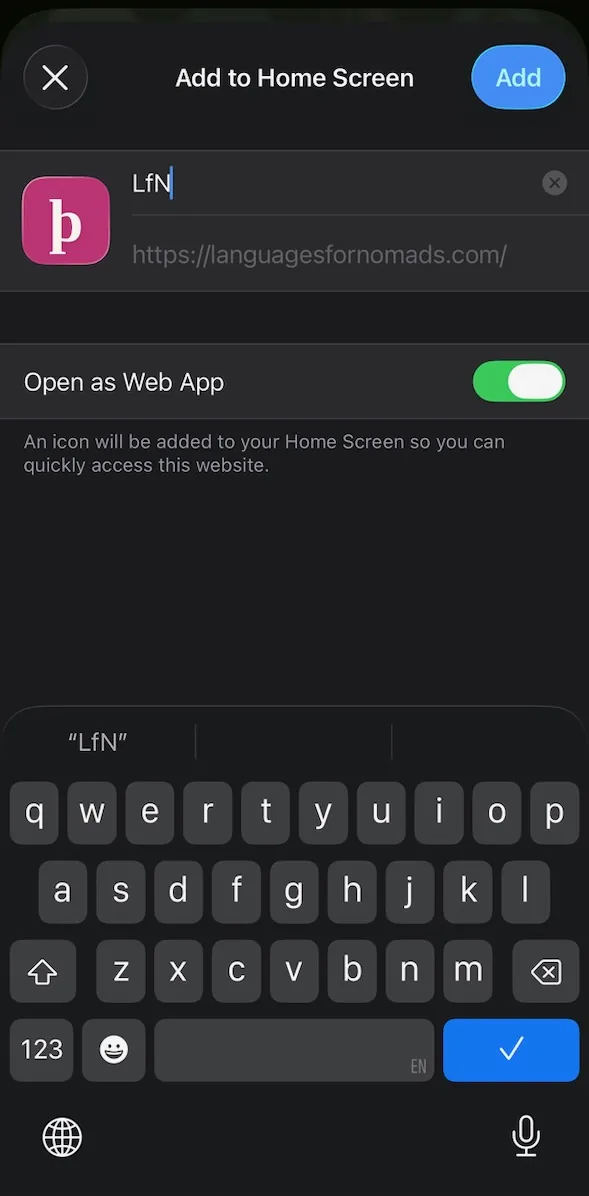
- Turn on Open as Web App, then tap Add.
Adding Odyssey for Today to your home screen on Android
Once added, it opens from its own icon like any other app.
- Open Odyssey for Today in Chrome.
- To the right of the address bar, tap More, then Install and create shortcut. Older versions of Chrome call it Add to home screen.
- Tap Install, then follow the steps on screen.
A keyboard for the language you are learning
Answers are quicker to type on your device's own keyboard for the language. Add one for each you learn here: Georgian, Thai, Russian, English, Latin American Spanish, Brazilian Portuguese, Turkish, French, German, Indonesian, Polish and Czech. Ancient Greek and Old English need none: the answer box brings its own letters.
- Georgian. Add the Georgian keyboard, as set out below for your phone or computer. Where more than one Georgian layout is offered, any of them will do.
- Thai. Add the Thai keyboard, as set out below for your phone or computer. Where more than one Thai layout is offered, any of them will do.
- Russian. Add the Russian keyboard, as set out below for your phone or computer. Where more than one Russian layout is offered, any of them will do.
- English. Add the English keyboard, as set out below for your phone or computer. Where more than one English layout is offered, any of them will do.
- Latin American Spanish. Add the Latin American Spanish keyboard, as set out below for your phone or computer. Where more than one Latin American Spanish layout is offered, any of them will do.
- Brazilian Portuguese. Add the Brazilian Portuguese keyboard, as set out below for your phone or computer. Where more than one Brazilian Portuguese layout is offered, any of them will do.
- Turkish. Add the Turkish keyboard, as set out below for your phone or computer. Where more than one Turkish layout is offered, any of them will do.
- French. Add the French keyboard, as set out below for your phone or computer. Where more than one French layout is offered, any of them will do.
- German. Add the German keyboard, as set out below for your phone or computer. Where more than one German layout is offered, any of them will do.
- Indonesian. Add the Indonesian keyboard, as set out below for your phone or computer. Where more than one Indonesian layout is offered, any of them will do.
- Polish. Add the Polish keyboard, as set out below for your phone or computer. Where more than one Polish layout is offered, any of them will do.
- Czech. Add the Czech keyboard, as set out below for your phone or computer. Where more than one Czech layout is offered, any of them will do.
- Ancient Greek. No keyboard to add: the answer box brings its own letters, from any keyboard. Type Beta Code: q makes θ, w makes ω. Put marks after the vowel: a)/ makes ἄ; a(=| makes ᾇ. An apostrophe marks elision, and s becomes final ς at a word’s end.
- Old English. No keyboard to add: the answer box brings its own letters, from any keyboard.
Adding a keyboard on iPhone
- Open Settings, then tap General, then Keyboard.
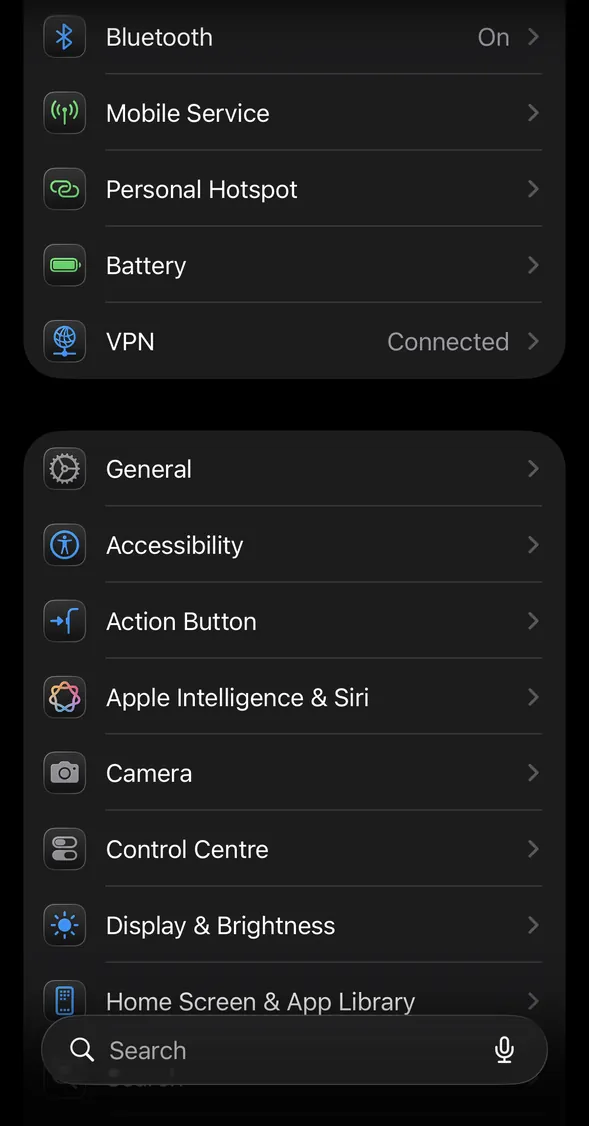
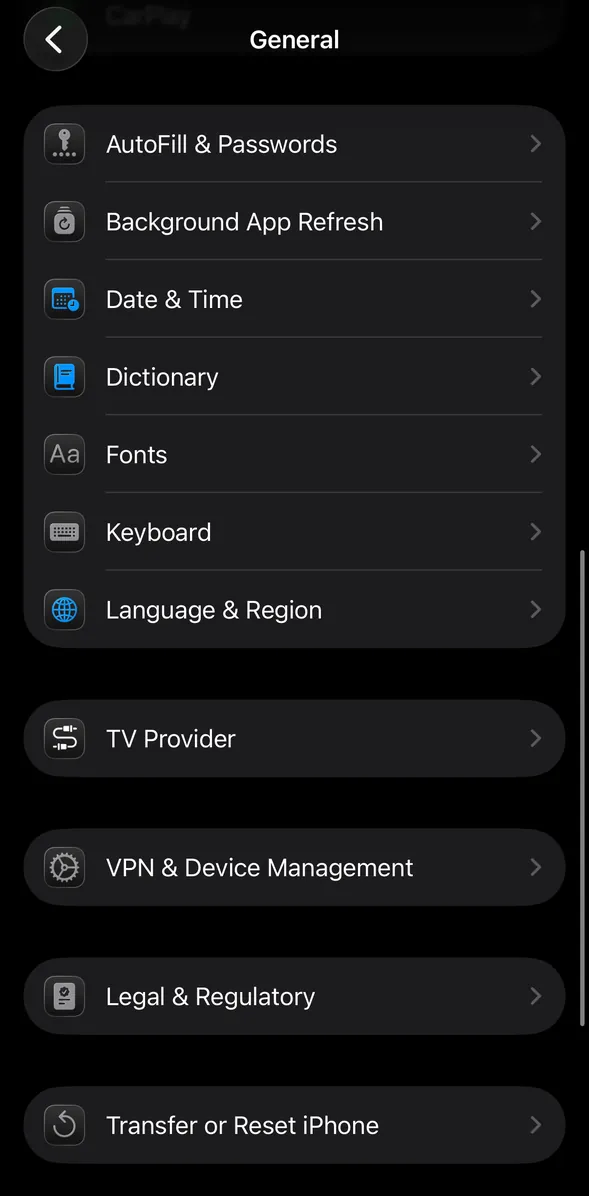
- Tap Keyboards, then Add New Keyboard.
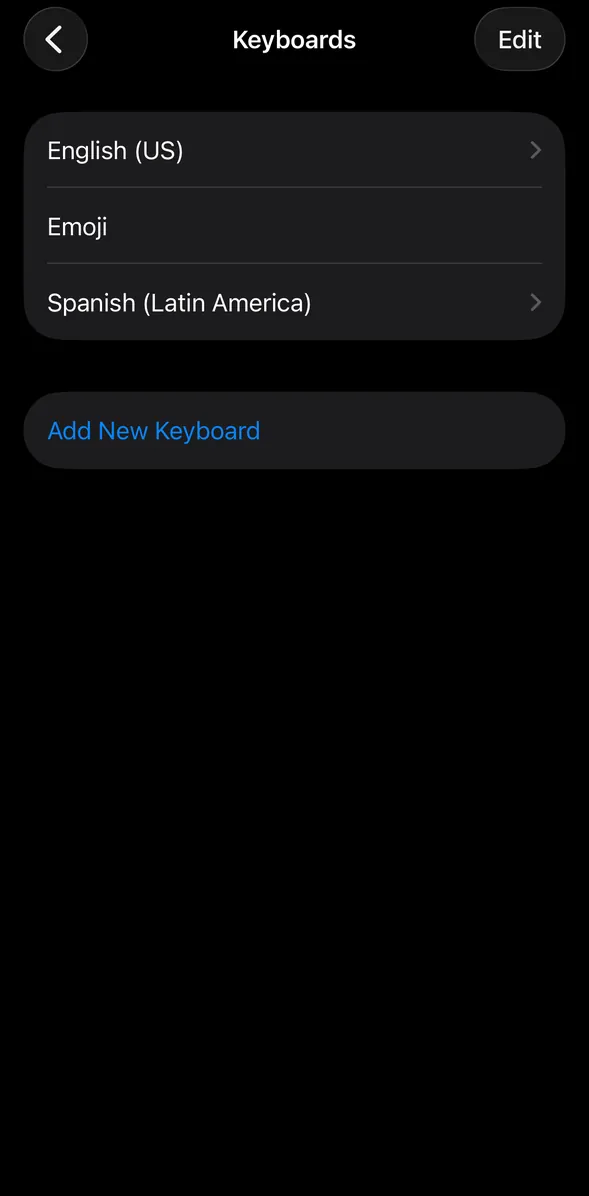
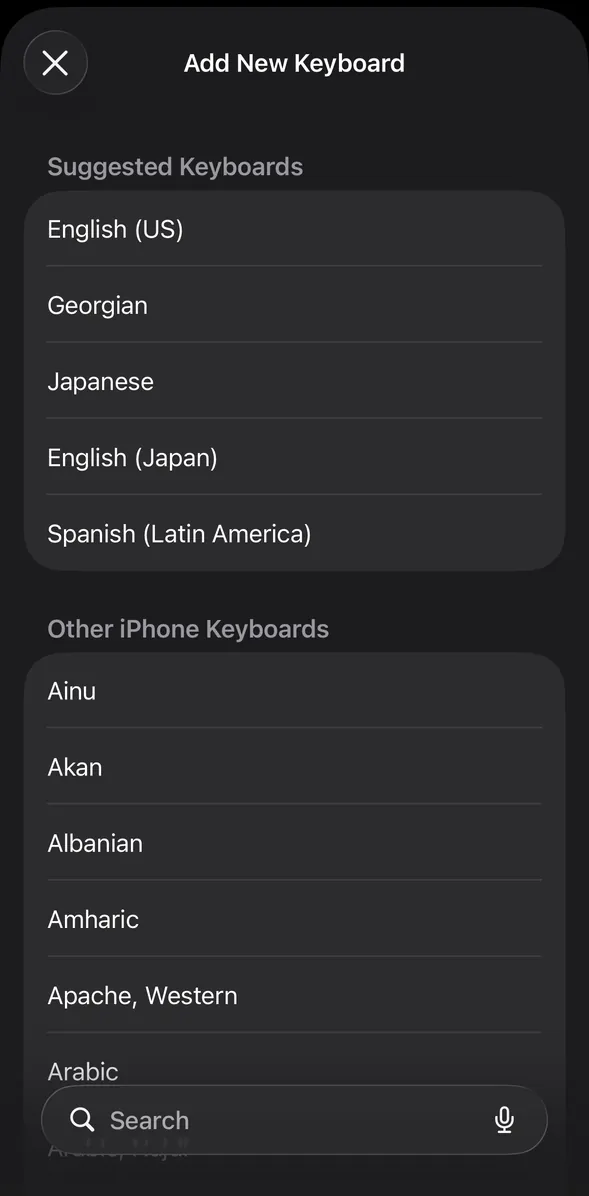
- Choose the language from the list, or search for it.
- While typing, touch and hold the globe or emoji key, then choose the keyboard you want.
Adding a keyboard on Android
Most Android phones come with Gboard, Samsung Galaxy phones with Samsung Keyboard. Menu names can differ a little between phones and Android versions.
Gboard
- Open any app you can type in, and tap where the text goes.
- At the top of the keyboard, tap Settings, then Languages, then Add keyboard.
- Pick the language, then the layout, and tap Done.
- While typing, touch and hold the space bar to switch languages.
Samsung Keyboard
- Open Settings, then tap General management, then Samsung Keyboard settings.
- Tap Languages and types, then Manage input languages.
- Turn on the language's switch. If it is not there, find it under Available languages and tap its download icon first.
- While typing, tap the globe key to switch languages.
Adding a keyboard layout on a computer
Windows 11
- Open Start, then Settings, then Time & language, then Language & region.
- If the language is not under Preferred languages, select Add a language, type its name, then select Install.
- Select the three dots (...) next to the language, then Language options.
- Under Keyboards, select Add a keyboard and choose a layout.
- To switch, hold the Windows logo key and press Space, or select the language in the taskbar.
Mac
- Open System Settings, then Keyboard. Under Text Input, click Edit.
- Click the Add button, search for the language, select an input source, then click Add.
- To switch, choose it from the Input menu in the menu bar, or press Control-Space for the one you used last.
Signing in
- Forgot your password? Choose Не помнишь пароль? on the sign-in page. We email you a code to set a new one. The code works once.
- Two-step sign-in. If you have lost your authenticator app, a passkey still signs you in without the code. With no passkey, write to us from the address on your account and we will turn two-step sign-in off. Your password then signs you in alone, and you can turn two-step sign-in on again in Настройки.
- Passkeys. Add one in Настройки, then choose Войти с ключом доступа on the sign-in page. A passkey lives on your device or in its password manager. If you lose it, sign in with your password, remove the old one in Настройки and add a new one.
Deleting your account
Настройки > Удалить учётную запись removes your account and everything kept under it at once. There is no undo. Our privacy policy says what that covers.
Privacy
What we keep about you, and why, is set out in ourprivacy policy.
Contact
For anything else, write to support@languagesfornomads.com. If it is about your account, write from the address on it, so we know it is yours. Our own emails come from an address that takes no replies, so write to this one.